Ticketing System
Track structured cases, enforce SLAs, and resolve issues with full audit trails. Built for teams who outgrow generic inboxes.
- •Inbox conversations to convert, or an email channel to ingest tickets directly
- •SLA targets defined in Settings → SLA (or accept defaults)
- •Optional: priority and severity values that match your ops playbook
- First ticket created with priority and SLA timer running
- Internal notes and activity log producing a complete audit trail
- Team aware of SLA breaches via in-app + email notifications
Step-by-step walkthrough
Numbered, real-world instructions you can follow today.
Click Tickets in the sidebar. You'll land on the All Tickets list with filters for status, priority, assignee, and SLA state.
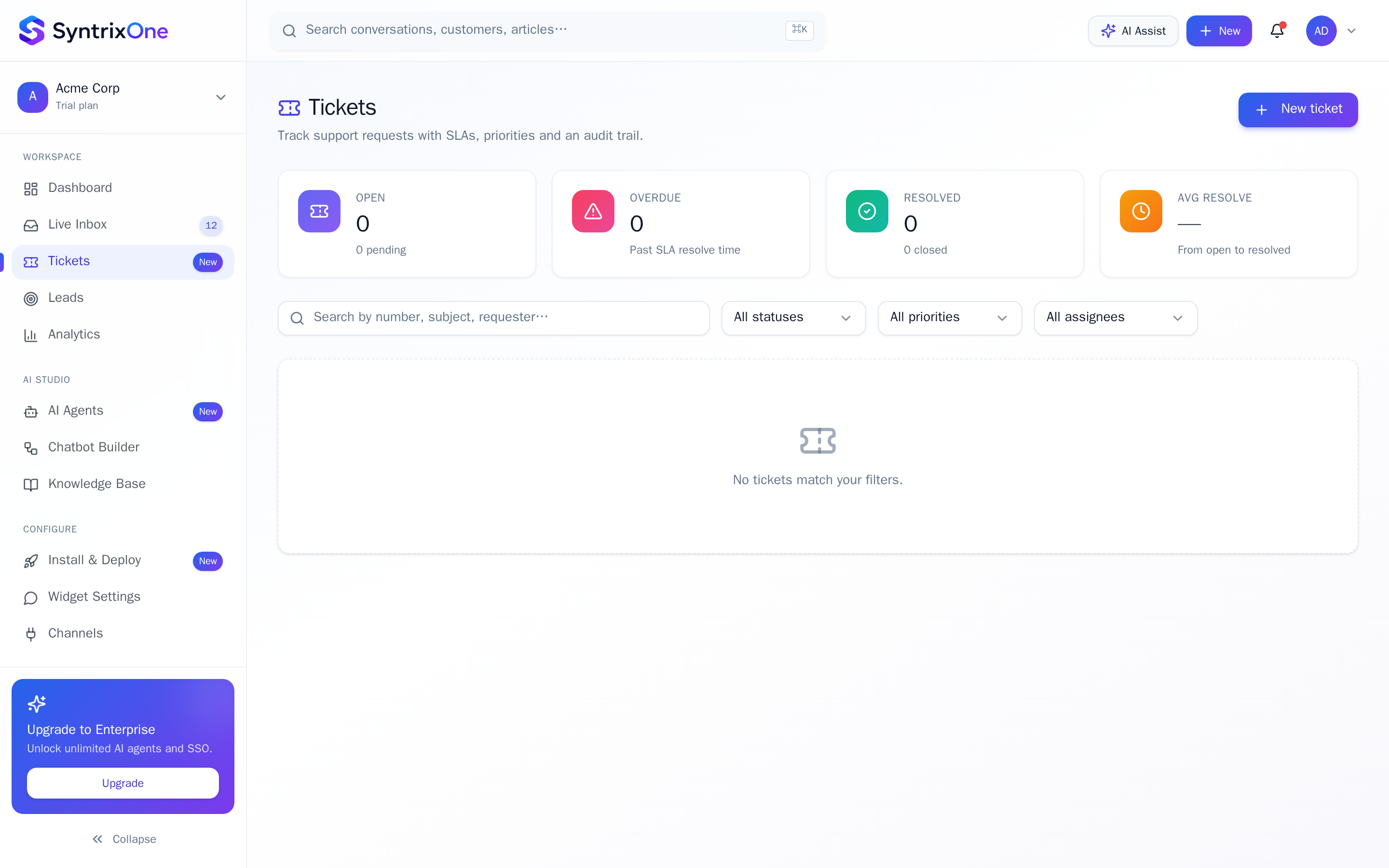
Click + New ticket — fill in title, description, priority, severity, and assignee. Or, from Live Inbox, click ⋮ → Convert to ticket to lift the entire thread into a ticket.
Each ticket displays a live SLA countdown — green (healthy), amber (at risk), red (breached). The SLA pauses automatically when the ticket is set to On hold (waiting on customer).
Use the Notes tab for internal-only discussion. Mention teammates with @, attach files, and reference other tickets with #.
Move the ticket to Resolved when work is done; the customer is asked to confirm. Once confirmed (or after the auto-close window), the ticket is Closed.
Tips & best practices
Field-tested advice from teams shipping SyntrixOne in production.
- Convert long inbox threads into tickets the moment they exceed 5 back-and-forths — SLA discipline kicks in immediately.
- Use Tags ("billing", "bug", "feature-request") for trend analysis in Analytics → Tickets.
- Pin a ticket to your dashboard if it's your top focus today — it appears in the top KPI strip.
Common issues & troubleshooting
What goes wrong, and exactly how to fix it.
Frequently asked questions
7 answers to the questions teams ask most.
Create your first Ticket
Estimated setup time: 5–10 minutes.
Related articles
Keep going — explore the next pieces of SyntrixOne.