Email Infrastructure
Production-grade transactional email with SMTP, templates, deliverability tooling, and full per-message logs.
- •SMTP credentials (or a Resend/SendGrid API key)
- •A verified sending domain (SPF + DKIM)
- Verified sending domain
- Templates customised with your brand
- Email logs streaming in real time
Step-by-step walkthrough
Numbered, real-world instructions you can follow today.
Sidebar → Settings → Email.
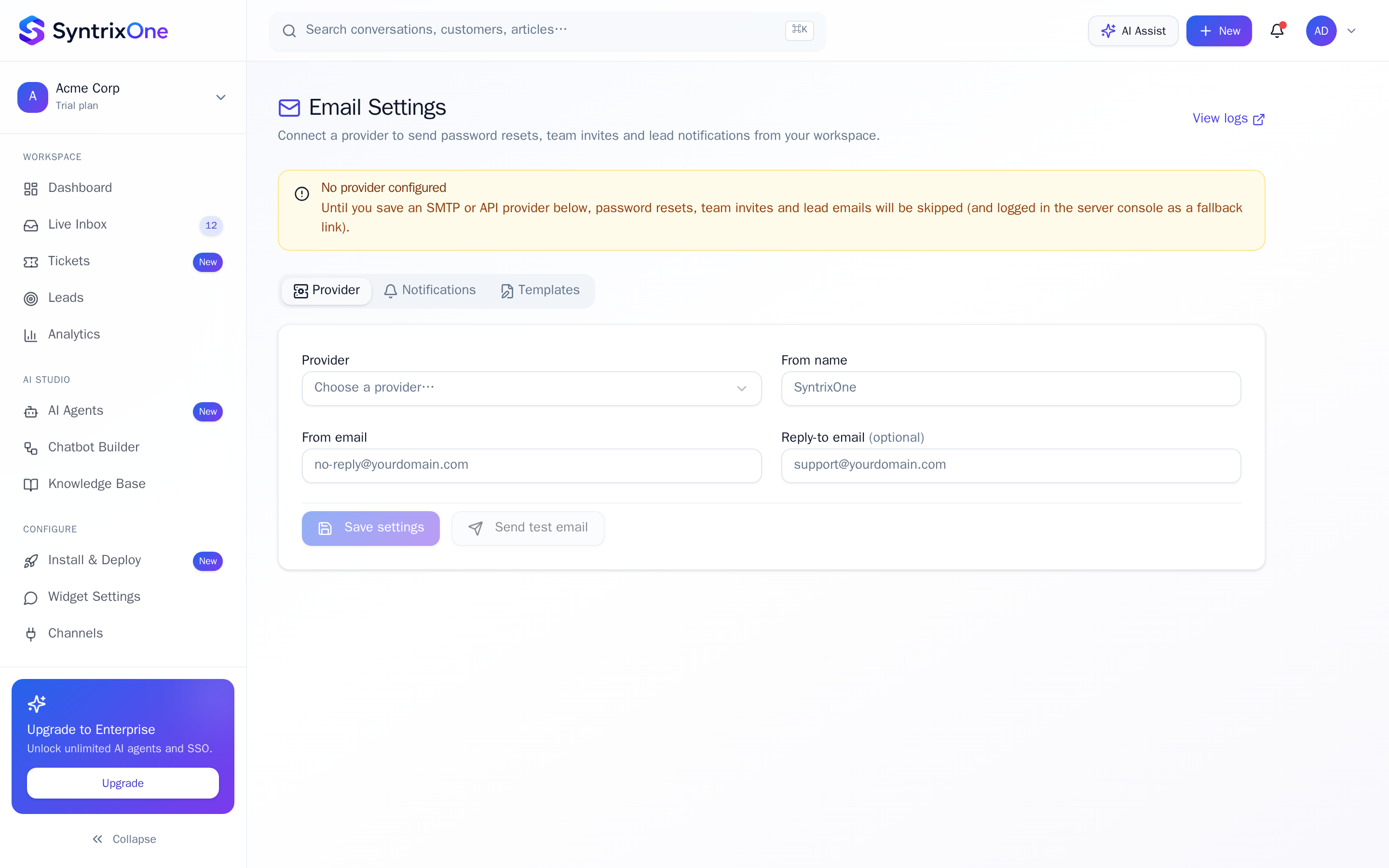
Enter host, port, user, password, and from-address. Passwords are encrypted at rest using AES-256-GCM.
Add the SPF and DKIM records shown in the verification panel to your DNS. Click Verify; results return in under 30 seconds.
Edit subjects and bodies for invites, password reset, ticket notifications, and lead notifications. Variables ({{first_name}}, {{ticket_id}}) are listed in the side panel.
Click Send test to fire each template to a real address. Check Email Logs for delivery + open events.
Tips & best practices
Field-tested advice from teams shipping SyntrixOne in production.
- Use a sub-domain (mail.yourdomain.com) for your sending domain. It keeps your main domain reputation safe.
- Set up DMARC at p=quarantine for production sending.
Common issues & troubleshooting
What goes wrong, and exactly how to fix it.
Frequently asked questions
5 answers to the questions teams ask most.
Configure your sending domain
Estimated setup time: 10–15 minutes.
Related articles
Keep going — explore the next pieces of SyntrixOne.